Settings
Configure integrations and business settings
This message scrolls right-to-left across the top of every page. Use the toolbar for colors and formatting. Type separators and emoji directly into the editor — e.g. • ♦ ◆ 🔥 ★.
Enter an internal path (e.g. /soups, /soups/desserts) or a full URL. Clicking the banner navigates here.
This message prints in a separate box at the bottom of every packing slip. It always begins with “Dear [first name],” automatically — enter only the body of your message below.
540 / 540 characters
Upload your branding label PDF, then print it in standard portrait orientation to apply to the exterior of your shipping boxes.
Show the Klaviyo email sign-up form that slides in from the right side of the screen. Displayed only on tablet and desktop displays.
Changes take effect on the next storefront page load.
Upload or paste URLs for key images across the public storefront. Supports JPG, PNG, WebP, GIF, and SVG.
Homepage Masthead
The banner image at the top of the homepage (left column).
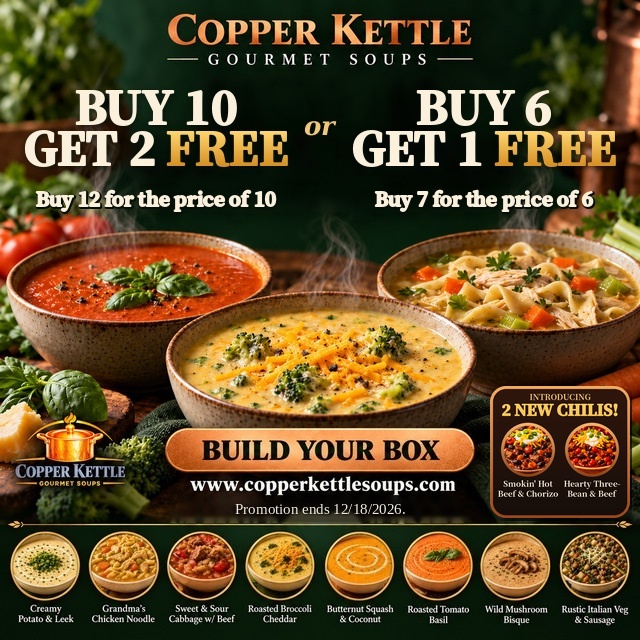
Homepage Story Image
The square image in the 'Our Story' block midway down the homepage.

About / Our Story Page Image
The portrait image on the Our Story page.
Upload images to display in the homepage carousel. Use the arrows to reorder, or click the trash to remove.

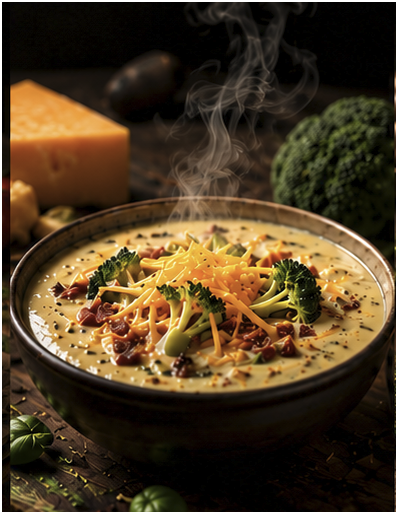
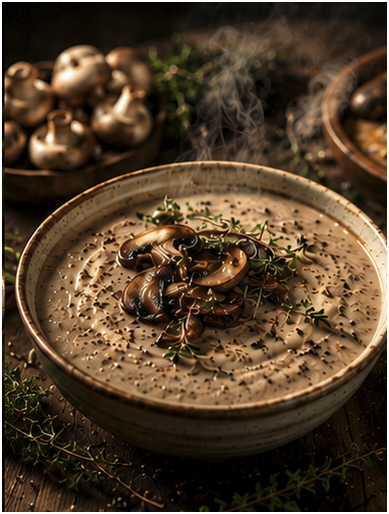
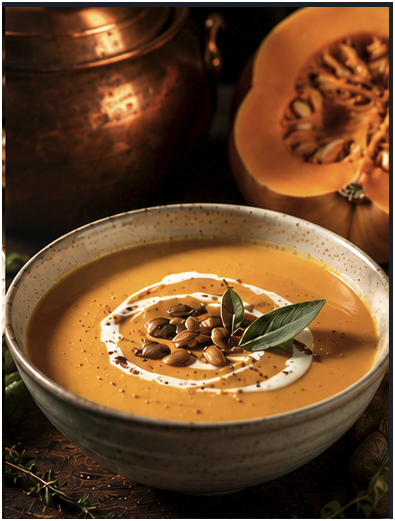
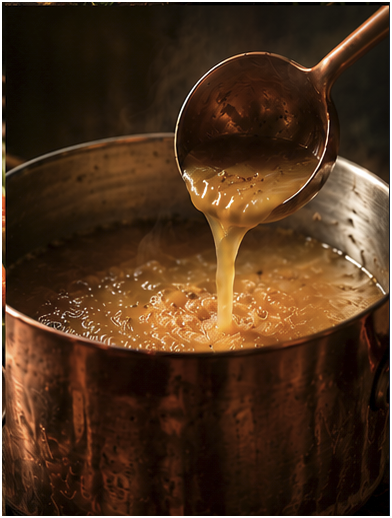
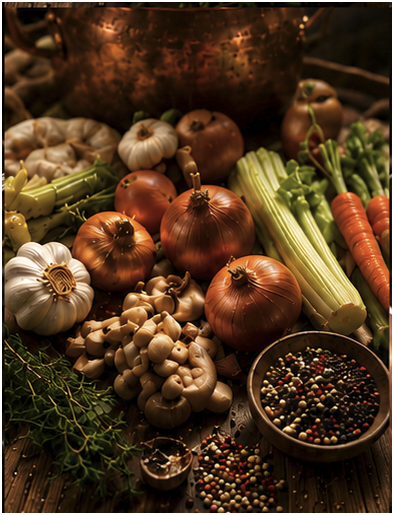
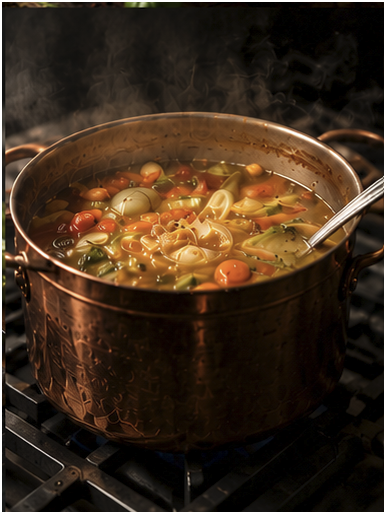
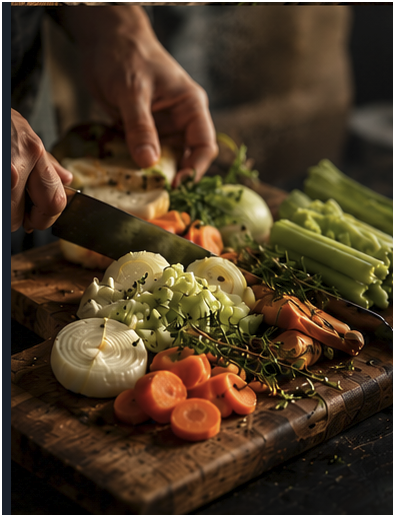
Control how fast the soup carousel rotates on the homepage.
Control how fast the "Running Low" inventory indicator blinks on the Build Your Box page.
Add a percentage markup to all shipping costs to help offset packaging expenses.
Example: Enter 15 to add 15% markup to all shipping costs.
SMS notifications (order confirmations, shipping updates, etc.) will be sent via Klaviyo. Configure SMS flows directly in your Klaviyo dashboard.
Set up SMS in KlaviyoShipStation powers your label generation, rate shopping, and tracking. Labels are created directly from the Shipping page.
Ship-From Address
These fields are saved as the SHIP_FROM_ADDRESS secret used for all label creation.
Your Klaviyo Private API Key is stored as KLAVIYO_API_KEY. Test the connection and manage list subscriptions below.
KLAVIYO_API_KEY environment variable.Manually Add a Subscriber
Upload front and back label templates for each soup product. When printing labels from the Production page, the system will print your uploaded templates and automatically overlay the batch number and best-by date onto each back label. Both front and back label templates must be uploaded for a soup before labels can be printed.
10 soups — upload a front label for each soup.
Smokin' Hot Beef & Chorizo Chili
10 servings/batch
Preview
Hearty Three-Bean Beef Chili
10 servings/batch
Preview
Grandma's Classic Chicken Noodle Soup
25 servings/batch
Preview
Roasted Butternut Squash & Coconut Soup
25 servings/batch
Preview
Old World Sweet & Sour Cabbage Soup with Beef
25 servings/batch
Preview
Italian Vegetable & Sausage Soup
25 servings/batch
Preview
Roasted Wild Mushroom Bisque
25 servings/batch
Preview
Roasted Tomato & Basil Soup
25 servings/batch
Preview
Roasted Broccoli & Cheddar Soup
25 servings/batch
Preview
Creamy Potato & Leek Soup
25 servings/batch
Preview